
AWS profiles
How Dynomate finds profiles
Dynomate reads the standard AWS shared files:
-
~/.aws/configon macOS and Linux, or%USERPROFILE%\.aws\configon Windows -
~/.aws/credentialson macOS and Linux, or%USERPROFILE%\.aws\credentialson Windows
Dynomate merges matching profile names from both files. In the config
file, use [default] for the default profile. Use
[profile name] for each named profile. In the credentials
file, use [default] or [name].
Restart Dynomate after you add or rename a profile. The app loads the profile list when it starts.
Access-key profiles
An access-key profile uses an access key ID and a secret access key. Keep these values in the credentials file, not in project files.
~/.aws/credentials [development]aws_access_key_id = YOUR_ACCESS_KEY_IDaws_secret_access_key = YOUR_SECRET_ACCESS_KEY~/.aws/config [profile development]region = us-east-1When you select the profile, Dynomate calls AWS Security Token Service (STS) to verify the identity. STS is an AWS service that checks credentials and returns the current account and role identity.
MFA profiles
MFA means multi-factor authentication. Add mfa_serial to the
profile that owns the access keys. Dynomate asks for a six-digit code when
the cached session has expired.
~/.aws/config [profile engineering]region = ap-southeast-2mfa_serial = arn:aws:iam::123456789012:mfa/developer[profile production-read]source_profile = engineeringrole_arn = arn:aws:iam::210987654321:role/ReadOnlyregion = ap-southeast-2- Select the MFA profile in Table Discovery.
- Enter the current six-digit MFA code.
- Select Submit.
- Wait for Authentication successful.
Dynomate stores temporary MFA session credentials in the standard AWS CLI
cache at ~/.aws/cli/cache. The session expires after the time
set by AWS. The current Dynomate MFA request asks AWS for a 12-hour session.
SSO profiles
AWS SSO is the previous name for AWS IAM Identity Center. Dynomate detects
a profile as SSO when it contains sso_start_url or references
an sso_session section.
SSO profiles are included in the 14-day trial and in Professional and Enterprise. See SSO Authentication for configuration and sign-in steps.
AWS Login profiles
Dynomate detects a profile as an AWS Login profile when it contains
login_session. The AWS CLI command aws login
adds this key. A role profile that uses a Login profile as its
source_profile also uses AWS Login.
See AWS Login for configuration and sign-in steps.
Local profiles
A local profile defines an endpoint_url that points to a
loopback address such as localhost or 127.0.0.1.
Use it for DynamoDB Local or LocalStack.
~/.aws/config [profile dynamodb-local]region = us-east-1endpoint_url = http://localhost:8000aws_access_key_id = localaws_secret_access_key = localDynomate labels this profile as Local. It does not call STS for a loopback endpoint. Table Discovery allows one Region at a time for a local profile.
Dynomate does not discover Amazon Aurora DSQL clusters for a local profile. A profile-wide endpoint_url never applies to Aurora DSQL. See Aurora DSQL API endpoints.
Discover profiles and Regions
- Open Settings and select Table discovery. You can also select Manage AWS profiles in Global Search.
- Select an AWS profile.
- Complete the authentication step shown for that profile.
- Filter the Region list if necessary.
- Select one or more Regions.
- Select Load Tables.
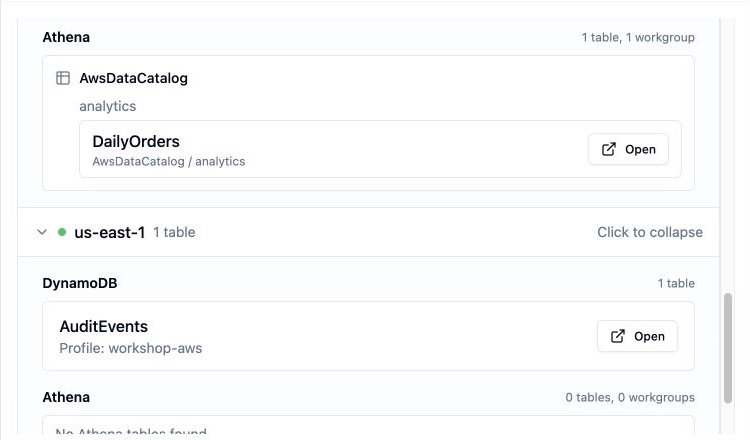
Selecting a different profile clears the selected Regions. Each loaded table keeps the profile and Region that Dynomate used to discover it. Return to Table Discovery when you want to load tables for another profile or Region.
Troubleshooting
The profile is not listed
- Check the profile section name in the AWS files.
- Check that the files are in the standard AWS directory.
- Restart Dynomate after you change the files.
Dynomate reports invalid credentials
- Check that the access key is active.
- Check that the secret key matches the access key ID.
- Select Refresh after you update the file.
Dynomate reports MFA required
- Check the
mfa_serialvalue. - Enter a current six-digit code.
- Check the system clock if AWS rejects a current code.
No tables are returned
- Check that you selected the Region that contains the table.
- Check that the AWS identity can call
dynamodb:ListTables. - Review the result for each Region and Logs.