
Import items into a table
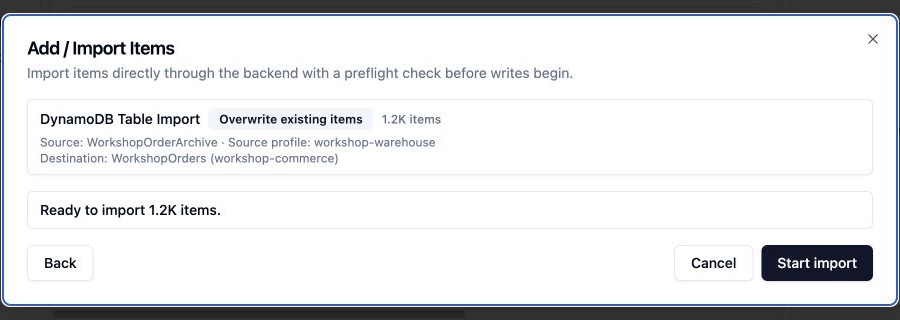
Use Add / Import Items to validate a source and write items to a selected destination table. The import runs as a background job after review passes.
To import from a terminal, use dynomate-cli table import. In a request, use dynamodb.import.
Choose a source
- Open the destination table.
- Select Add Item.
- Select a source.
- Confirm the destination profile and table.
| Source | Required input |
|---|---|
| Editor | A JSON array of item objects. |
| File | A local .json or .csv file. |
| S3 | A source profile, S3 object ARN, bucket Region, and JSON or CSV format. |
| DynamoDB | A source profile and source table ARN. |
The source and destination can use different AWS profiles. A DynamoDB source cannot be the same profile and table ARN as the destination.
Prepare JSON or CSV
JSON
The root value must be an array. Every array entry must be an object. Each item must contain the destination partition key and, when present, the destination sort key.
DynamoDB AttributeValue wrappers are optional. Dynomate accepts normal JSON values and DynamoDB JSON values in the same item.
Normal JSON
[ { "pk": "ORDER#1001", "amount": 42.5, "paid": true, "customer": { "name": "Asha" } }]DynamoDB AttributeValue JSON
[ { "pk": { "S": "ORDER#1001" }, "amount": { "N": "42.5" }, "paid": { "BOOL": true }, "tags": { "SS": ["paid", "priority"] } }]
Use normal JSON for strings, numbers, booleans, maps, lists, and null.
Use AttributeValue wrappers such as SS, NS,
BS, or B for sets and binary values. Each wrapper
must contain exactly one DynamoDB type key. Do not wrap the item in an
Item envelope.
CSV
- The file must have a header row.
- Header names must be unique.
- Required key attributes must be present.
- All non-empty values are imported as strings.
- Empty cells are omitted from the item.
Use JSON when the items contain numbers, booleans, maps, lists, sets, binary values, or null values. Dynomate does not map or rename attributes during import.
For background, see DynamoDB type descriptors.
Choose conflict behavior
- Overwrite existing items: Replaces a destination item that has the same key with the complete incoming item.
- Skip existing items: Leaves a matching destination item unchanged and counts it as skipped.
Skip mode uses a conditional put for each item. It can require more requests and more time than overwrite mode.
Duplicate keys inside the import source block the import. Conflict behavior applies only to keys that already exist in the destination table.
Review and start
- Select Review import.
- Correct all blocking issues.
- Review any warnings.
- Select Start import.
Review reads and parses the source. It checks required key names and types, malformed input, duplicate source keys, and an identical DynamoDB source and destination. Review does not write to the destination table.
Review does not list keys that already exist in the destination table. Dynomate applies the selected conflict behavior while the job writes items.
Monitor or cancel
The table view shows the job state and the processed, written, skipped, and failed item counts. States are Queued, Running, Cancelling, Cancelled, Completed, and Failed.
The import runs in the background after it starts. You can change tabs and continue other tasks while the job runs. Return to the destination table to review progress or request cancellation.
Restrictions
- Only one active import can run for a destination table.
- An import and a truncate job cannot run at the same time on the same table.
- A DynamoDB table source is read with a full table scan.
- Source items must already use the destination key attribute names and compatible key types.
- DynamoDB item size, key, and attribute restrictions still apply.
- A started import is not part of staged changes and cannot be committed with Review Changes.
AWS permissions
Destination table:
dynamodb:DescribeTabledynamodb:BatchWriteItemfor overwrite modedynamodb:PutItemfor skip mode
S3 source:
s3:GetObjecton the selected objectkms:Decryptwhen the object uses an AWS KMS key
DynamoDB source:
dynamodb:Scanon the source table