
Use the DynamoDB Table View
The table view shows the items returned by the current scan or query. Use it to inspect data, select attributes, and start item or table operations.
Open the table view
Open a discovered table. Dynomate starts in Scan mode and shows the base table. Use the action bar to switch modes, change the view, select attributes, refresh data, add items, review changes, truncate the table, or export data.
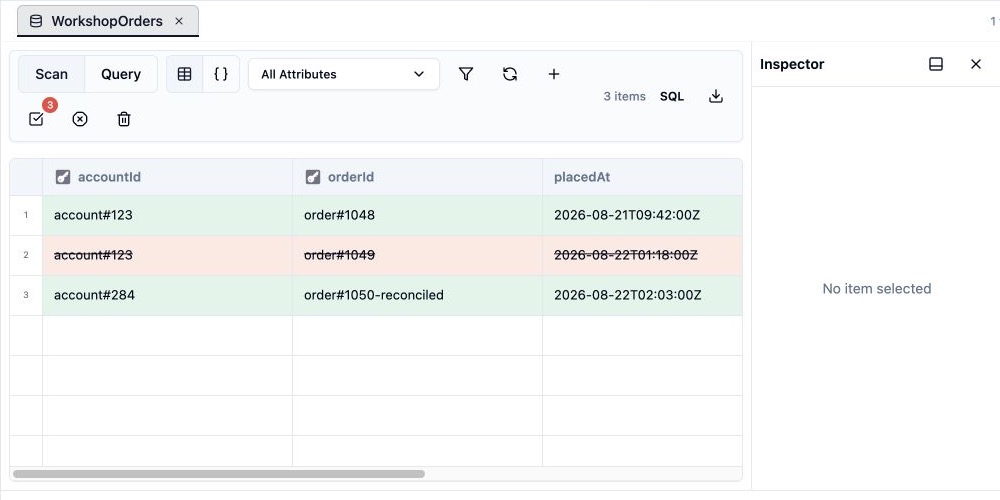
Choose grid or JSON
- Grid: Shows one item per row. Use it for selection, column sorting, resizing, and inline edits.
- JSON: Shows loaded items as JSON. Use it to inspect nested values without flattening them into columns.
The selected view remains in the current table tab.
Load more items
Dynomate loads results in pages. Scroll near the end of the grid or JSON view to load the next page. A Loading more message appears while the request runs.
The item count in the action bar is the number of loaded items. It is not the total table item count. The table view does not use numbered pagination controls.
Choose attributes
- Select All Attributes.
- Select the attributes that you want to show.
- Clear the selection to show all available attributes again.
Attribute selection changes both grid columns and JSON output. Current-page downloads also use this selection.
Select and inspect items
Select a grid row to show its JSON in JSON Inspector. You can dock JSON Inspector to the side or bottom. Editing valid DynamoDB item JSON in JSON Inspector stages an update.
Hold Command on macOS or Ctrl on Windows and Linux to select separate rows. Use a range selection to select adjacent rows. Press Command+A or Ctrl+A while the grid has focus to select all loaded rows.
Open the row context menu to view or edit JSON, copy an item, download an item, start a key query, or stage a delete. A multi-row selection can be downloaded as JSON or CSV, or staged for deletion.
Sort and resize columns
- Drag a column boundary to change its width.
- Open a column menu to sort loaded rows in ascending or descending order.
- Partition and sort key columns remain frozen at the left of the grid.
Column sort is local
A grid column sort changes only the rows that are already loaded. It does not change DynamoDB query order. Use query sort direction to change DynamoDB sort-key order.
AWS permissions
Opening a table requires dynamodb:DescribeTable. Reading data requires dynamodb:Scan or dynamodb:Query, based on the selected mode. Other workflows list their required permissions on their own pages.