
Quick start guide
Before you start
Make sure that you have:
- Installed Dynomate.
- At least one profile in your AWS configuration files.
- Permission to list and read the DynamoDB tables that you need.
An AWS profile is a named group of authentication settings. An AWS Region
is a geographic AWS location, such as us-east-1. DynamoDB
tables belong to one Region.
Open Table Discovery
- Open Settings and select Table discovery. You can also select Manage AWS profiles in Global Search.
- Select an AWS profile.
Dynomate reads the profile list from ~/.aws/config and
~/.aws/credentials. On Windows, these files are in
%USERPROFILE%\.aws.
Authenticate the profile
Dynomate checks the selected profile before it shows the Region list.
- For an access-key profile, wait for Credentials valid.
- For an MFA profile, enter the six-digit MFA code and select Submit.
- For an AWS SSO profile, select Login. Complete the AWS sign-in in your browser.
- For an AWS Login profile, select Sign in with browser. Complete the AWS sign-in in your browser.
- For a local profile, wait for Local profile. Local endpoints do not require AWS authentication.
If authentication fails, see authentication failures.
Load tables
- Filter the Region list if necessary.
- Select each Region that contains tables you need.
- Select Load Tables.
- Review the result for each Region.
You can select several Regions for an AWS profile. A local profile uses one Region at a time. Selecting another profile clears the Region selection.
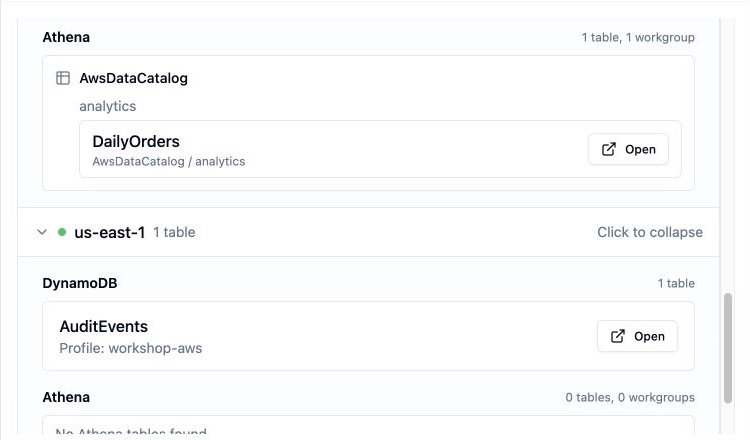
Open a table
- Expand the AWS account in the Tables sidebar.
- Expand the Region.
- Select a DynamoDB table.
Dynomate opens the table in a work tab. You can scan the table or query it by its partition key. AWS permissions still control which operations can succeed.