
Aurora DSQL errors and limits
This page lists the Amazon Aurora DSQL errors that Dynomate shows, and how to fix them. Most errors show the SQLSTATE from Aurora DSQL and guidance from Dynomate.
In requests and the CLI, an Aurora DSQL error is a DNML_AWS error, and awsError.awsErrorCode is the SQLSTATE.
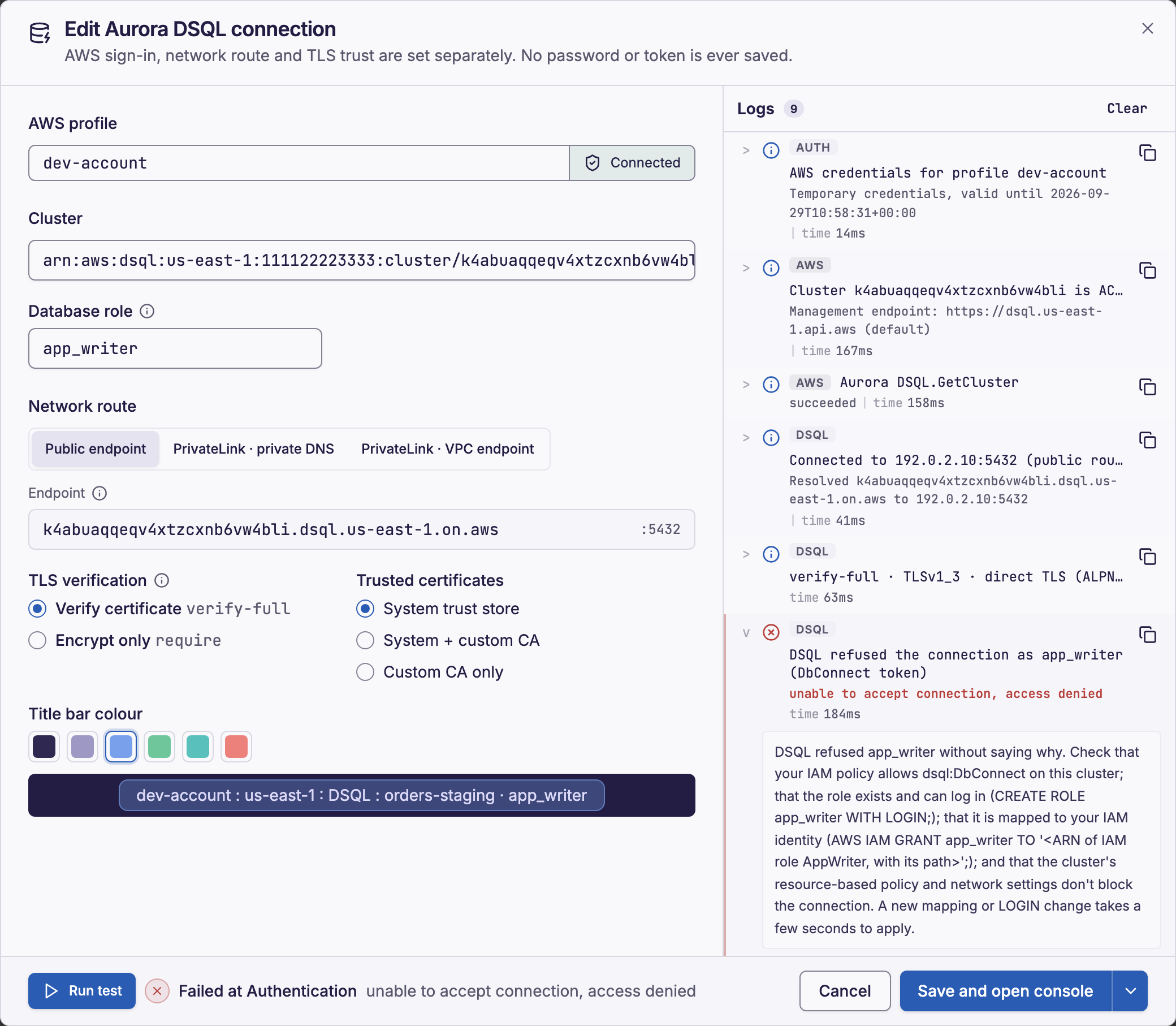
Access denied
Aurora DSQL returns "access denied" with SQLSTATE 28000 for several causes, and it often does not say which one. Check each cause:
- Make sure that the IAM policy allows
dsql:DbConnecton the cluster, ordsql:DbConnectAdminforadmin. - Make sure that the role exists and has
LOGIN. - Make sure that
AWS IAM GRANTmaps the role to the ARN of your IAM role, with its path. - Make sure that the resource-based policy and the network settings of the cluster do not block the connection.
- After a change, wait a few seconds, or up to one minute for a resource-based policy.
- Select Run test in the connection dialog.
In the connection test, the guidance for a custom role names your IAM identity in an AWS IAM GRANT statement. Replace the placeholder with the ARN of that IAM role, with its path. To create and map a role, see Create a custom role.
A token for a different host gives SQLSTATE 08006. On the PrivateLink · VPC endpoint route, select the other host in Sign the IAM token for. Then test the connection again.
Credential and token errors
If Dynomate cannot load the credentials of the profile in 30 seconds, or the credentials expired, sign in again or refresh the profile. Then run the statement again, because Aurora DSQL tabs do not load again after a sign-in.
If Aurora DSQL rejects the token as "expired or not yet valid", check the clock of this computer. Clock skew is a common cause.
Network and TLS errors
| Message | What to do |
|---|---|
| "Could not resolve <host>" or "Resolving <host> timed out" | Check DNS, the VPN and the private DNS of the AWS PrivateLink endpoint. |
| "Could not connect to <host>:5432" | Check the VPN, the security groups and the firewall for port 5432. |
| "The server certificate did not verify as <name>" | Check the route and the trusted certificates. Do not select Encrypt only unless you trust the network path. |
| "The TLS handshake with <name> timed out" or "failed" | Check the route, the VPN and the proxy. |
| "Connection startup didn't finish within 60 s." | TCP and TLS worked, but the sign-in did not complete, for example while an IDLE cluster wakes up. Run the statement again. |
If the system trust store cannot load, use Custom CA only with an imported CA bundle.
A cluster ARN must have the form arn:<partition>:dsql:<region>:<account-id>:cluster/<id>, or Dynomate shows "Invalid cluster ARN".
Database errors
| SQLSTATE | Cause | What to do |
|---|---|---|
42501 | The role does not have a database privilege, for example "permission denied for table orders". This is not an IAM error. | Ask an admin to grant the privilege to the role. |
25P02 | An earlier statement in the transaction failed. | Run ROLLBACK, or select Run ROLLBACK. |
0A000 | Aurora DSQL does not support the statement. For example, a transaction has DDL and DML, or more than one DDL statement. | Run each DDL statement on its own, outside an explicit transaction. For other statements, change the SQL. |
0P000 | You ran AWS IAM GRANT for a role without LOGIN. | Run ALTER ROLE … WITH LOGIN. Then run AWS IAM GRANT again. |
Optimistic concurrency conflicts
Aurora DSQL checks for conflicts when a transaction commits. After a conflict, Aurora DSQL commits nothing from the transaction.
OC000: another transaction changed the same rows first.OC001: the schema changed while the transaction ran.
Aurora DSQL can also return 40001 with one of these codes in the message. Dynomate runs the SQL again only when you tell it to:
- In the console, select Run again. Dynomate sends the SQL of the earlier run, not the current text in the editor.
- In a table tab, select the apply button again. See Apply outcomes.
- In a request, set
retryOnConflict = true. See Commit status and retries.
Unknown commit outcomes
The outcome of a write is unknown when Aurora DSQL returns XX000 during a COMMIT or an autocommit write. It is also unknown after a cancel or a lost connection during such a write.
The console and table tabs show "Outcome unknown". In a request, details.commitStatus is "unknown", and the CLI shows commit: unknown. Dynomate never runs such a write again automatically. For a table tab, see When the outcome is unknown.
Aurora DSQL limits
Aurora DSQL enforces these limits. Dynomate does not enforce them, but its errors name the limit and give guidance.
| Limit | SQLSTATE | What to do |
|---|---|---|
| Connection rate: 100 each second, with bursts of 1,000 | 53400 | Try again later. Dynomate makes up to 6 connection attempts, but the connection test makes one. |
| Connections: 10,000 by default | 53300 | Close sessions that you do not use. All clients of the cluster share this limit. |
| 3,000 changed rows in a transaction | 54000 | Split the work into smaller transactions. |
| 10 MiB of changed data in a transaction | 54000 | Split the work into smaller transactions. |
| 5 minutes for a transaction | 54000 | Split the work into shorter transactions. |
| 60 minutes for a database connection | – | Run the statement again on the new session. Dynomate renews idle sessions before this limit. |
| 128 MiB of memory for a query | 53200 | Select fewer rows or columns, or add filters. |
Aurora DSQL also uses 54000 for other limits, for example the row size and the number of indexes. The error names the limit. For all quotas, see Cluster quotas and database limits in Amazon Aurora DSQL in the AWS documentation.