
Aurora DSQL network routes and TLS
Each Amazon Aurora DSQL cluster has one set of network settings in Dynomate: the route, the TLS verification level and the trusted certificates. All connections to the cluster use them, and so do requests and the CLI.
Settings belong to the cluster
You set the network settings in the connection dialog. Dynomate stores them for the cluster ARN, so every connection to the cluster uses them, from any AWS profile. The defaults are Public endpoint, Verify certificate and System trust store.
Choose a network route
Under Network route, select one of three routes. On each route, Dynomate makes a direct TCP connection to port 5432. There is no proxy setting.
| Route | Dynomate connects to | Name that TLS verifies | Token signed for |
|---|---|---|---|
| Public endpoint | The endpoint from GetCluster, or <id>.dsql.<region>.on.aws | The same host | The same host |
| PrivateLink · private DNS | <id>.<service-id>.<region>.on.aws | The same name | The same name |
| PrivateLink · VPC endpoint | The DNS name or IP address that you enter | <id>.<service-id>.<region>.on.aws | <id>.<service-id>.<region>.on.aws (default) or <id>.dsql.<region>.on.aws |
<id> is the cluster identifier. <service-id> is the last part of the endpoint service name, for example dsql-fnh4 in com.amazonaws.us-east-1.dsql-fnh4.
PrivateLink · private DNS
Dynomate fills in the endpoint service and the host with GetVpcEndpointServiceName. The host must resolve on this computer, through the private DNS of the interface VPC endpoint or a *.<service-id>.<region>.on.aws record on your network. For example, you can use such a record when you connect through a VPN, AWS Direct Connect or VPC peering.
PrivateLink · VPC endpoint
In VPC endpoint DNS name, enter the DNS name or an IP address of the interface VPC endpoint. For example, enter vpce-0123456789abcdef0-abcdefgh.dsql-fnh4.us-east-1.vpce.amazonaws.com. Do not add a scheme, a port or a path.
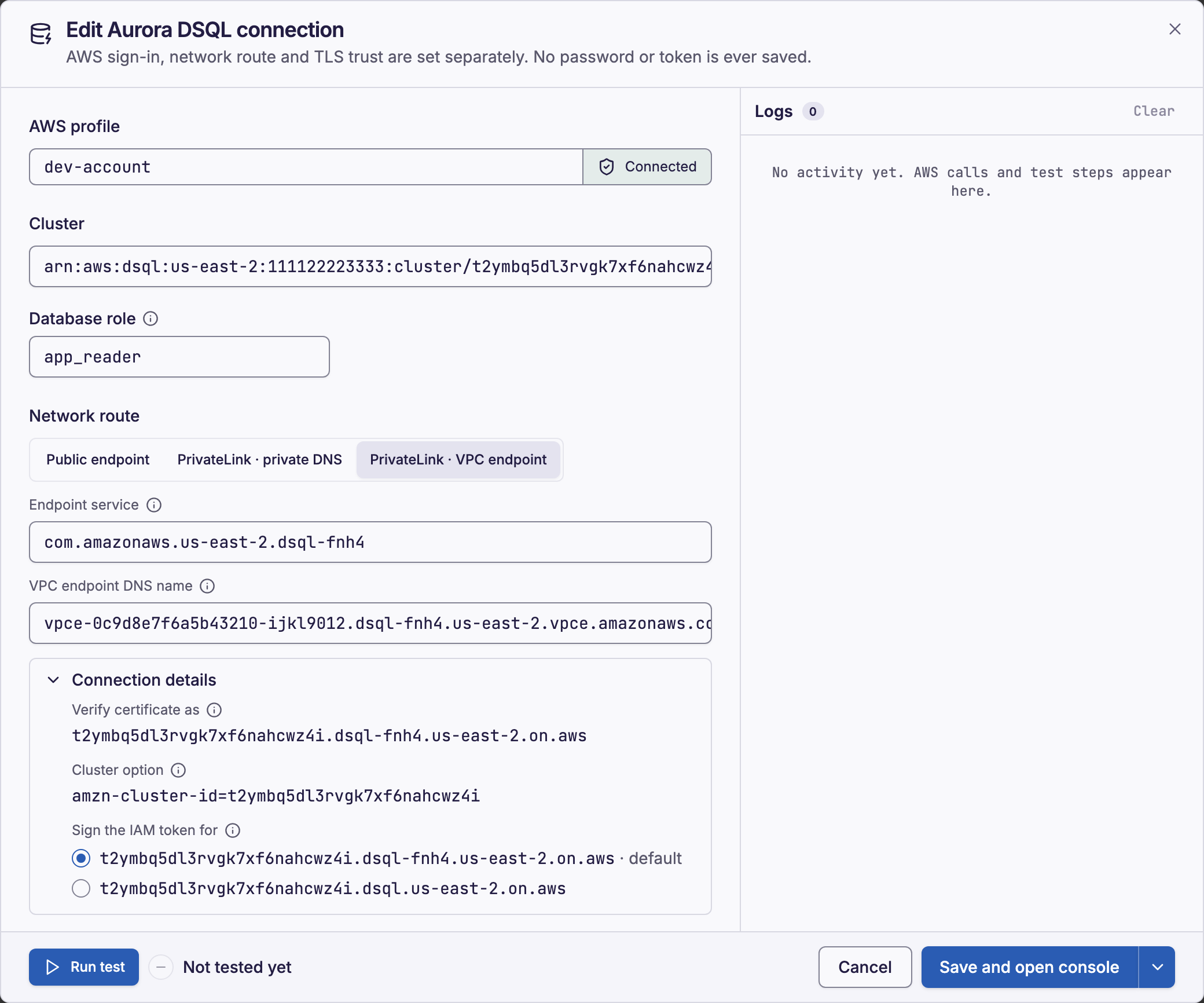
- 1. Network route buttons
- 2. VPC endpoint DNS name
- 3. Connection details
Dynomate connects to the VPC endpoint, but it checks the certificate against the Aurora DSQL name. As a result, you do not have to change DNS records. Dynomate also sends the cluster option amzn-cluster-id=<id>, because the endpoint serves every cluster of the endpoint service.
- Dynomate suggests the VPC endpoints that
DescribeVpcEndpointsfinds in the account of the profile. If the endpoint is in a shared networking account, type its DNS name. - Under Connection details, Sign the IAM token for sets the host of the token. Change it only if Aurora DSQL refuses the token on this route.
If Dynomate cannot reach the cluster, see network and TLS errors.
Choose TLS verification
- Verify certificate (
verify-full) is the default. Dynomate checks the certificate chain, and that the certificate names the TLS host of the route. - Encrypt only (
require) encrypts the connection but skips all certificate checks.
Dynomate supports TLS 1.2 and TLS 1.3. It never changes Verify certificate to Encrypt only automatically.
Choose trusted certificates
System trust store, the default, uses the trust store of the operating system, with enterprise root certificates. System + custom CA adds a CA bundle that you import. Custom CA only trusts only that bundle.
To import a CA bundle:
- Under Trusted certificates, select System + custom CA or Custom CA only.
- Select Import PEM….
- Select a
.pem,.crtor.cerfile with one or more certificates. - Save the connection.
Dynomate copies the bundle to the dsql-ca folder in the app data directory, so you can move or delete the original file. If the system trust store cannot load, use Custom CA only.
AWS API endpoints
ListClusters, GetCluster and GetVpcEndpointServiceName use the first of these endpoints:
- The environment variable
AWS_ENDPOINT_URL_DSQL. - The
endpoint_urlof thedsqlentry in the[services]section of the profile. - The default endpoint of the AWS Region,
https://dsql.<region>.api.aws. Withuse_fips_endpoint = true, it ishttps://dsql-fips.<region>.api.aws.
Dynomate never uses a profile-wide endpoint_url or AWS_ENDPOINT_URL for Aurora DSQL. The database connection always uses the host of the network route.
Requests and the CLI
Request files have no route or TLS keys. Aurora DSQL operations in the app and in dynomate-cli use the saved settings of the cluster ARN. The CLI reads them from the app data directory of the desktop app.
With no saved settings, an operation uses the public endpoint, Verify certificate and the system trust store. This is also the case on a CI runner with no app data. If the app database exists but Dynomate cannot read it, the operation fails with DNML_IO.
Required permissions
Both permissions are optional. Without them, you type the AWS PrivateLink values.
dsql:GetVpcEndpointServiceNameon the cluster ARN, to fill in the endpoint service and the host.ec2:DescribeVpcEndpointson*, to suggest VPC endpoints.
This example policy allows the AWS PrivateLink lookup:
{ "Version": "2012-10-17", "Statement": [ { "Effect": "Allow", "Action": "dsql:GetVpcEndpointServiceName", "Resource": "arn:aws:dsql:us-east-1:111122223333:cluster/exampleclusterid0123456789" }, { "Effect": "Allow", "Action": "ec2:DescribeVpcEndpoints", "Resource": "*" } ]}