
Edit Aurora DSQL table rows
Dynomate stages your changes to Amazon Aurora DSQL table rows and applies them in one transaction. Nothing changes in the cluster until you apply the changes.
Before you edit
- The table must have a primary key, or a valid unique index on
NOT NULLcolumns that is not partial. Views are read-only. - You edit rows in Filter mode. Results in SQL mode are read-only.
- The database role needs
SELECT,INSERT,UPDATEandDELETEon the table. - To connect, the profile needs
dsql:DbConnect, ordsql:DbConnectAdminforadmin. See connection permissions. - Dynomate finds each row by its key columns. It does not check if the row changed after it loaded.
Stage changes
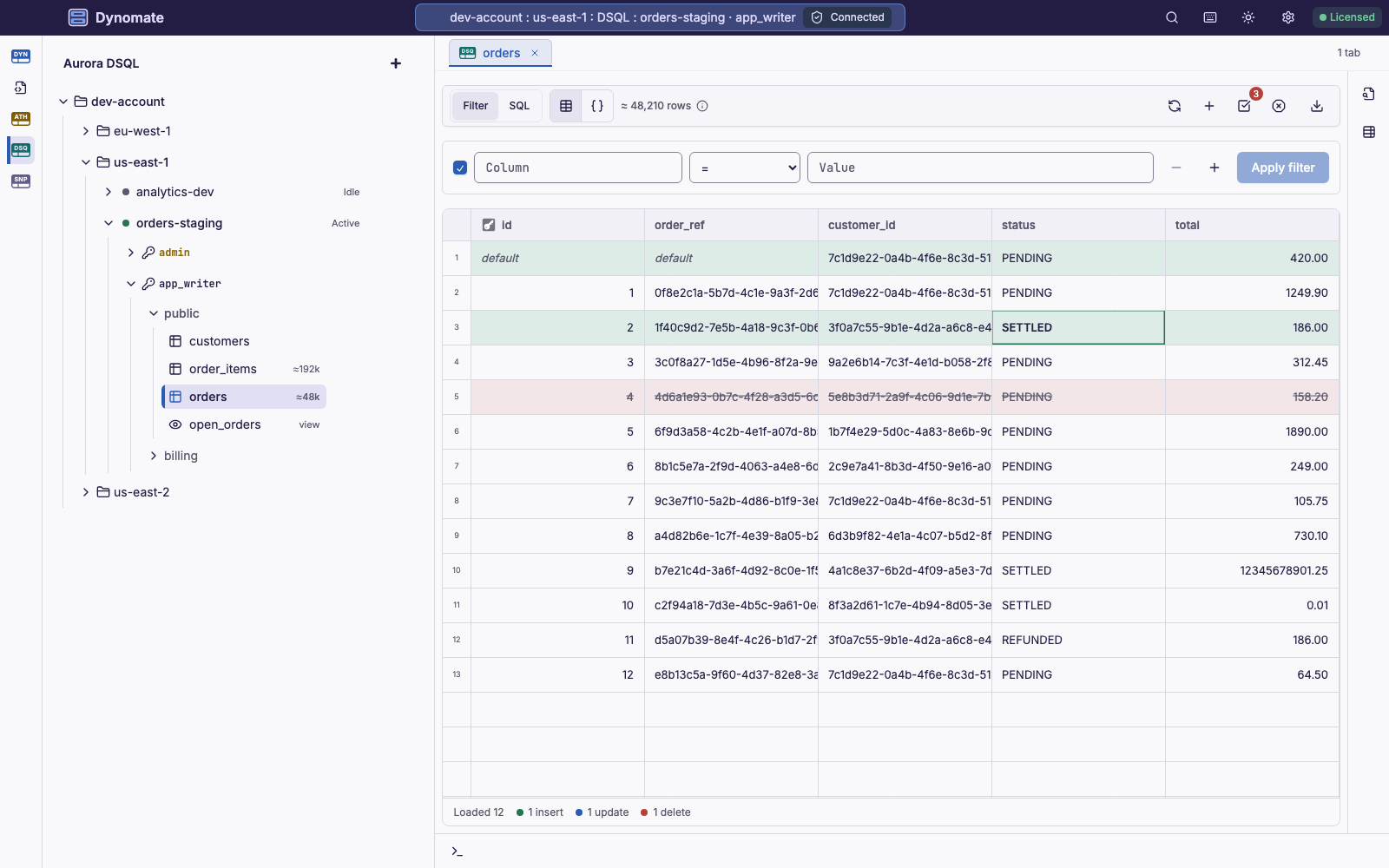
The footer counts the staged changes. They stay when you change tabs or modes, but not after you restart the app. If you change the profile, cluster or role of the connection, Dynomate discards them.
Edit a cell
- Open the editor of a cell.
- Type the new value.
- Press Enter.
For a column that can be NULL, you can select Set NULL. If you set a cell back to its loaded value, Dynomate removes the change.
Add a row
- Select Add row in the toolbar.
- Type the values in the new row at the top of the grid.
You must fill in each cell that shows "required". A cell that shows "default" or "NULL" can stay empty. If a "default" cell stays empty, Dynomate leaves its column out of the INSERT.
Delete rows
- Select one or more rows.
- Right-click the selected rows.
- Select Delete row. For more rows, the item shows the number, for example Delete 3 rows.
To undo one staged change, right-click the row. Then select Restore row or Discard row changes. To undo all staged changes, select Discard changes in the toolbar. Dynomate does not ask you first.
Review and apply
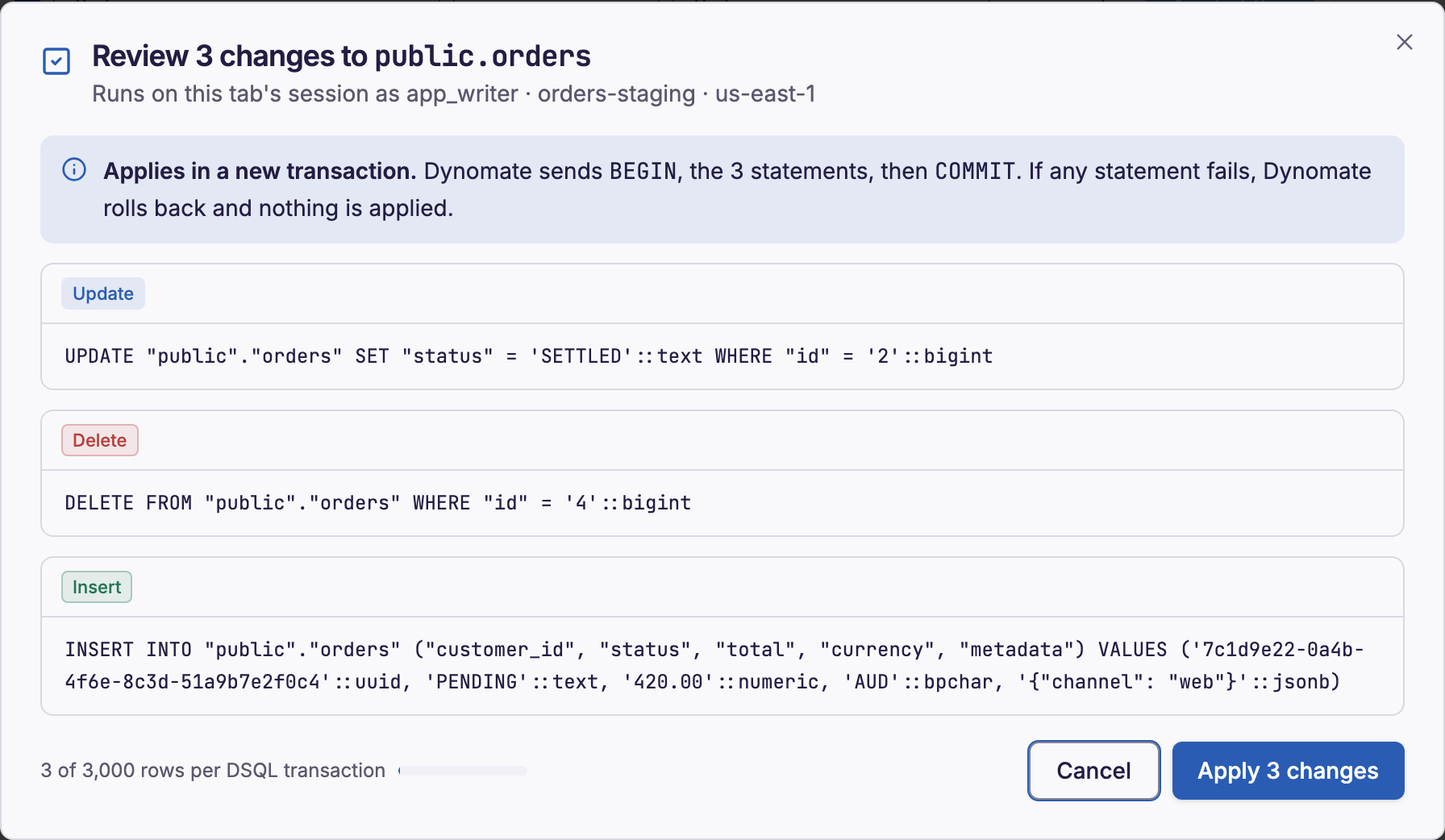
- Select Review changes in the toolbar.
- Read each statement.
- Select the apply button, for example Apply 3 changes.
- Dynomate runs the updates first, then the deletes, then the inserts. Each statement must change exactly one row.
- With no open transaction in the tab, Dynomate sends
BEGIN, the statements andCOMMIT. If a statement fails, Dynomate rolls back and applies nothing. - With an open transaction, the button is Run in open transaction. The statements stay uncommitted until you run
COMMIT. If a statement fails, Dynomate stops, but it does not roll back your transaction. - Aurora DSQL allows 3,000 changed rows in a transaction. The dialog shows the number of changes against this limit.
Apply outcomes
| Result | What happened | What to do |
|---|---|---|
| "Applied 3 changes" | Dynomate committed the changes and loaded the rows again. | Nothing. |
| "Changes are in your open transaction" | The statements ran in your transaction. They are not committed. | Run COMMIT or ROLLBACK. |
| "BEGIN failed" or "COMMIT failed" | Dynomate could not start or commit its transaction, for example because of an optimistic concurrency conflict. Dynomate applied nothing. | Select the apply button again. |
| "Statement failed" | A statement failed, so Dynomate rolled back. Dynomate applied nothing. | Fix the cause in the error. Then select the apply button again. |
| "A statement changed the wrong number of rows" | A statement changed 0 rows or more than 1 row, so Dynomate rolled back. With 0 rows, the row is gone, or its key changed after it loaded. | Check the rows after they load again. |
| "Stopped in your open transaction" | A statement failed, or changed the wrong number of rows, in your open transaction. The statements that ran stay in the transaction. Dynomate never sends ROLLBACK in your transaction. | Check the rows. Then run COMMIT or ROLLBACK. |
| "Outcome unknown" | Dynomate cannot confirm the commit. | See When the outcome is unknown. |
When the outcome is unknown
If Dynomate cannot confirm its commit, the changes stay staged, and the rows load again.
- Wait until the rows load again.
- Check the rows in the grid.
- Select Review changes.
- If the changes are not in the rows, select Apply again.