
Query local DynamoDB snapshots with SQL
Dynomate can scan a complete DynamoDB table, build a local Parquet snapshot, and query that snapshot with DuckDB SQL.
Create a snapshot
Local SQL requires a completed full-table export.
A DNML export with snapshot = true
also creates a SQL snapshot. A page download, query result, or filtered scan cannot create
a SQL snapshot.
- Open a DynamoDB table.
- Select SQL.
- Review the full-table scan notice.
- Select Export & open SQL.
- Wait for the export and local artifact build to complete.
- Select Query snapshot if the SQL tab is not already open.
You can also start a full export from the table export menu. Choose JSON Lines or CSV for the export file. Dynomate builds the queryable Parquet artifact after that export completes.
A full-table export uses DynamoDB Scan. It consumes read capacity and can be
throttled. Advanced options change the scan page size and the number of parallel segments.
More parallel workers can use more local CPU, network bandwidth, and DynamoDB read capacity.
Understand snapshot states
The export job uses these states:
- Queued: The job is waiting to start.
- Running: Parallel workers are scanning the table and writing local segment files.
- Cancelling: Dynomate requested a stop and is waiting for workers to finish.
- Cancelled: Dynomate stopped the export and removed its temporary job directory.
- Completed: The full export file is ready. Dynomate then builds local SQL storage.
- Failed: The export did not complete. An interrupted active job is marked failed after restart.
The local SQL artifact uses these states:
- Building: The export exists, but the Parquet snapshot is not ready.
- Ready: The Parquet snapshot exists and SQL is enabled.
- Failed: Dynomate could not build the queryable artifact. The export file can still exist.
- Missing: The snapshot record exists, but its artifact is not present on disk.
Dynomate disables SQL and column loading until the artifact is ready and available. The snapshot tab shows export progress, exported item count, and an estimated completion time when enough progress samples exist.
Plan local storage
Dynomate stores full-export files, temporary segment files, the Parquet snapshot, and query result files under the app data directory. These files stay on your computer. Snapshot SQL does not send table rows to a Dynomate service.
Each new full export creates another snapshot. Dynomate does not enforce a snapshot count or storage quota. Remove old snapshots when you no longer need them.
Query with DuckDB SQL
The SQL editor uses DuckDB. Dynomate accepts one SELECT statement or one
WITH statement. It rejects write statements and multiple statements.
Dynomate creates two temporary views:
snapshotreads the open snapshot.historyreads the available Parquet snapshots for the same table and includes asnapshot_idcolumn.
Dynomate reads saved schema metadata first. If that metadata is unavailable, it asks DuckDB to describe the snapshot. The discovered columns appear in editor suggestions.
Select Max rows to return 100 to 500,000 rows. Dynomate wraps the statement in an outer limit and fetches one extra row to detect truncation. The limit applies to the result, not to the amount of local data that DuckDB reads.
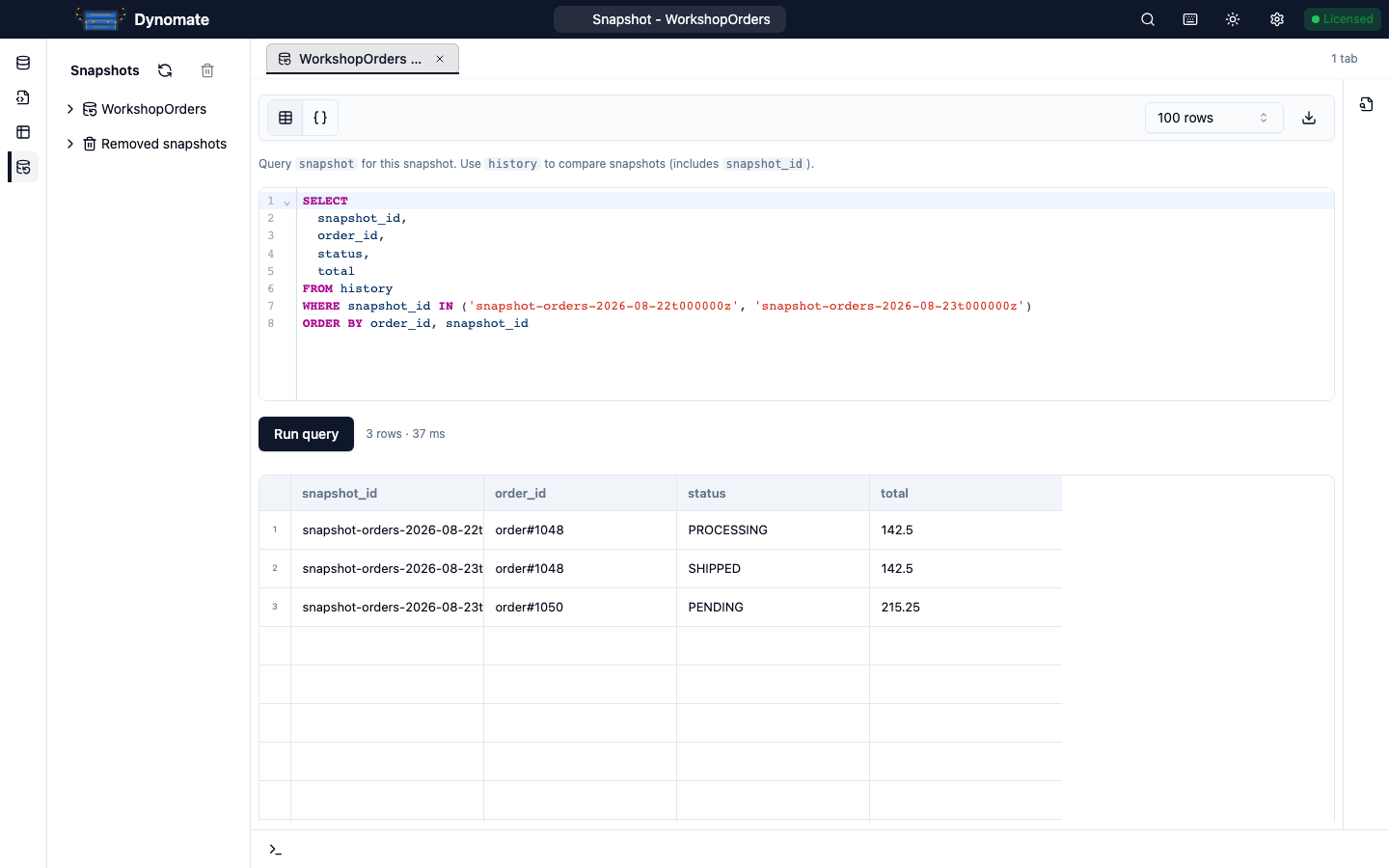
history view. Review and export results
Query results show the returned row count and local execution time. Table view supports row selection and JSON Inspector. JSON view shows at most 200 rows to keep the preview responsive.
Export the current result as JSON or CSV. The main export action writes all returned rows. A row selection writes only the selected rows. Dynomate saves the file in your Downloads directory and chooses a unique name when a file already exists.
The JSON preview limit does not reduce a full-result export. The selected Max rows value does. To export more rows, rerun the SQL with a larger row value. Query-result export does not export the complete snapshot unless the query returned the complete snapshot.
Dynomate records local SQL completion or failure in Logs. The entry includes the source snapshot, SQL text, duration, row count, row limit, columns, artifact format, and truncation state. Local DuckDB queries do not create AWS query calls.
Cancel work
Select Cancel export while a full-table export is queued or running. Dynomate marks the job as cancelling and asks each worker to stop. A worker checks the cancel flag between DynamoDB scan pages. An in-flight Scan request can finish before cancellation completes.
A cancelled export does not produce a queryable snapshot. Start a new snapshot from the table view when you need to retry.
An active local DuckDB SQL query has no cancel control. Wait for it to finish or fail. Use a selective query and a lower row value when you need a shorter local operation.
Delete snapshots
Dynomate checks whether each snapshot artifact still exists. A missing artifact stays in the list with a Missing badge, but you cannot open or query it.
- Remove snapshot hides the record. It keeps local storage and offers an undo action.
- Delete storage + remove deletes the snapshot artifact and hides the record. The original full-export file can remain in its export directory.
- Restore snapshot returns a removed record to the list. It becomes available only if its artifact still exists.
- Remove missing snapshots hides all records whose artifacts are no longer on disk.
Delete storage + remove is unavailable when Dynomate has already marked the artifact as missing. Restoring a record does not recreate deleted storage. Removing missing records changes the local list only and does not recover files. Start a new full-table export when the local artifact is gone.
To query the live table, see Query and filter table items. To run SQL on data in S3, see Query Athena.
To run SQL on an Amazon Aurora DSQL cluster, see Run SQL in the Aurora DSQL console.