
Aurora DSQL overview and discovery
Dynomate connects to Amazon Aurora DSQL clusters with your AWS profiles. You can run SQL, view and edit table rows, read the schema, and run Aurora DSQL operations in requests and the CLI.
What Dynomate supports
- Connect to a cluster with an AWS profile and a database role.
- Choose the network route and TLS settings of each cluster.
- Run SQL in a console, with one session for each tab.
- View and filter table rows in a table tab.
- Edit table rows and apply the changes in one transaction.
- Read the structure and DDL of a table, also when you are offline.
- Fix Aurora DSQL errors and read the service limits.
- Save Aurora DSQL operations in DNML requests, and run them in the app.
- Run the same requests with Dynomate CLI.
Dynomate does not create, change or delete clusters, database roles or IAM mappings. The access-level rules for work tabs, AWS IAM Identity Center profiles and request collections apply to Aurora DSQL.
Discover clusters
- Open Table Discovery.
- Select an AWS profile.
- If the profile needs it, sign in with AWS IAM Identity Center, AWS Login or an MFA code.
- Select one or more AWS Regions.
- Select Load Tables.
Load Tables discovers DynamoDB tables, Athena tables and Aurora DSQL clusters together. In each Region, Dynomate calls ListClusters, then GetCluster for each cluster. A problem with Aurora DSQL does not change the DynamoDB or Athena results.
Review discovery results
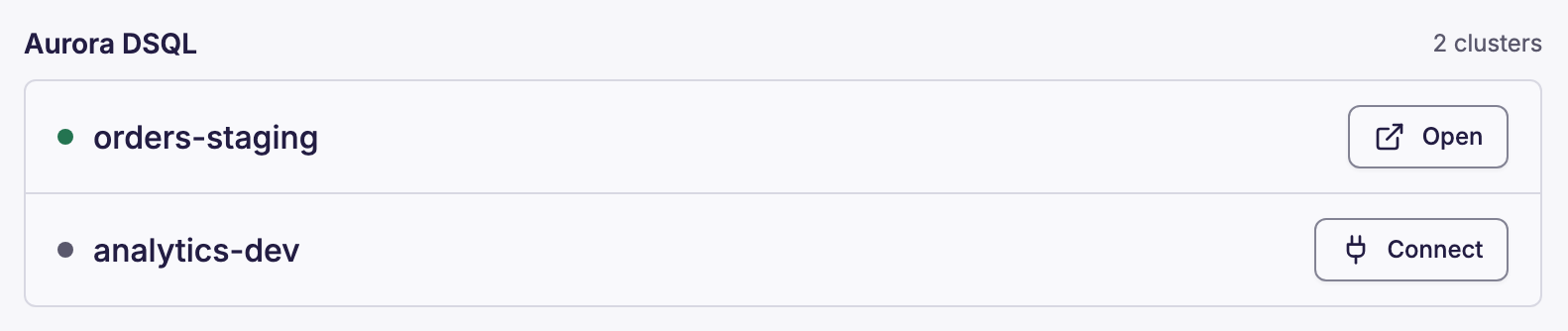
Expand a Region in the results. Its Aurora DSQL group shows each cluster with a status dot, the Name tag or the cluster identifier, and one button:
- Open shows the latest console of the connection that you used last, or opens a new console.
- Connect shows when you have no connection to the cluster. It opens the connection dialog with the profile and the cluster ARN filled in.
If the profile cannot call ListClusters in the Region, or the call times out, the group shows "Clusters not listed". Add the cluster by its ARN.
Dynomate saves the clusters that discovery finds. If a later complete ListClusters result for the same profile and Region does not include a cluster, the sidebar marks it Stale. Its connections continue to work.
Add a cluster by ARN
- Select Add cluster by ARN in the Region, or select + in the Aurora DSQL sidebar section.
- If AWS profile is empty, select the profile.
- In Cluster, enter the cluster ARN, for example
arn:aws:dsql:us-east-1:111122223333:cluster/exampleclusterid0123456789. - In Database role, enter
adminor the name of a custom role. - Select Save and open console.
Dynomate adds the cluster when you save the connection. It calls GetCluster to get the status, the Name tag and the endpoint. If the call fails, Dynomate makes the endpoint <id>.dsql.<region>.on.aws from the ARN.
Find clusters in the sidebar and search
Select Aurora DSQL in the sidebar rail. The tree has these levels: AWS profile, Region, cluster, connection, schema, then tables and views. A cluster shows under the profile that discovered it, and a connection shows under its own profile.
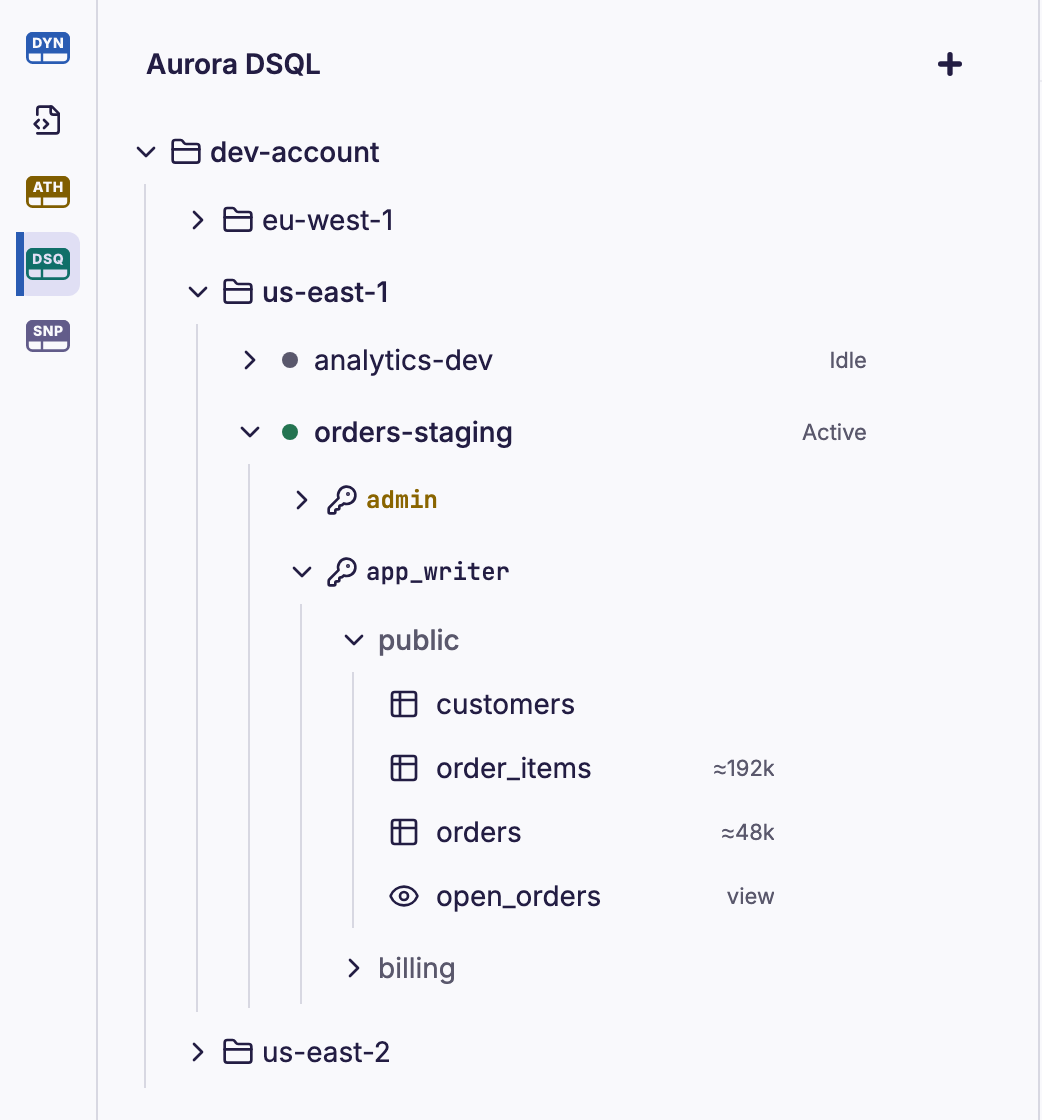
- Expand a connection to load its catalog.
- Global Search lists a console for each connection, and the tables of the catalogs that loaded in this app session.
What Dynomate stores
Dynomate stores these items on this computer:
- The clusters, and the network settings of each cluster.
- Connections: the AWS profile name, the cluster ARN, the database role and the color.
- Catalogs and table descriptions. They hold metadata only.
- Imported CA bundles, in the
dsql-cafolder of the app data directory.
Dynomate never stores IAM authentication tokens, passwords or AWS credentials. Console results are temporary files in the app data directory. Dynomate deletes them when the next run starts or when you close the tab. At startup, it deletes result files that are older than one day.
When you are offline, the sidebar and the stored structure and DDL still show.
Required permissions
| Task | IAM action | Resource |
|---|---|---|
| Discover clusters | dsql:ListClusters | * |
| Show the status and name of each cluster | dsql:GetCluster | The cluster ARN |
Connect as admin | dsql:DbConnectAdmin | The cluster ARN |
| Connect as a custom database role | dsql:DbConnect | The cluster ARN |
| Fill in the AWS PrivateLink values (optional) | dsql:GetVpcEndpointServiceName | The cluster ARN |
| Suggest VPC endpoints (optional) | ec2:DescribeVpcEndpoints | * |
Without dsql:GetCluster, discovery still lists the clusters, but with no status or name. SQL, catalog loads and table pages use the database connection, so they need no other IAM action. A resource-based policy on the cluster can also deny a connection.
This example policy allows discovery and a connection as admin:
{ "Version": "2012-10-17", "Statement": [ { "Sid": "ListClusters", "Effect": "Allow", "Action": "dsql:ListClusters", "Resource": "*" }, { "Sid": "DescribeClusters", "Effect": "Allow", "Action": "dsql:GetCluster", "Resource": "arn:aws:dsql:us-east-1:111122223333:cluster/exampleclusterid0123456789" }, { "Sid": "ConnectAsAdmin", "Effect": "Allow", "Action": "dsql:DbConnectAdmin", "Resource": "arn:aws:dsql:us-east-1:111122223333:cluster/exampleclusterid0123456789" } ]}