
Run SQL in the Aurora DSQL console
The Amazon Aurora DSQL console runs SQL on one connection, with one session for each tab. It shows a result for each statement and the state of the session.
Open a console
To open a new console, select New console in the menu of a connection in the sidebar. Open in Table Discovery and the console entry in Global Search show the latest console of the connection. If the connection has no console, they open a new one.
A console connects at its first run. After you restart the app, the console tabs and their SQL come back, but sessions and results do not.
Run SQL
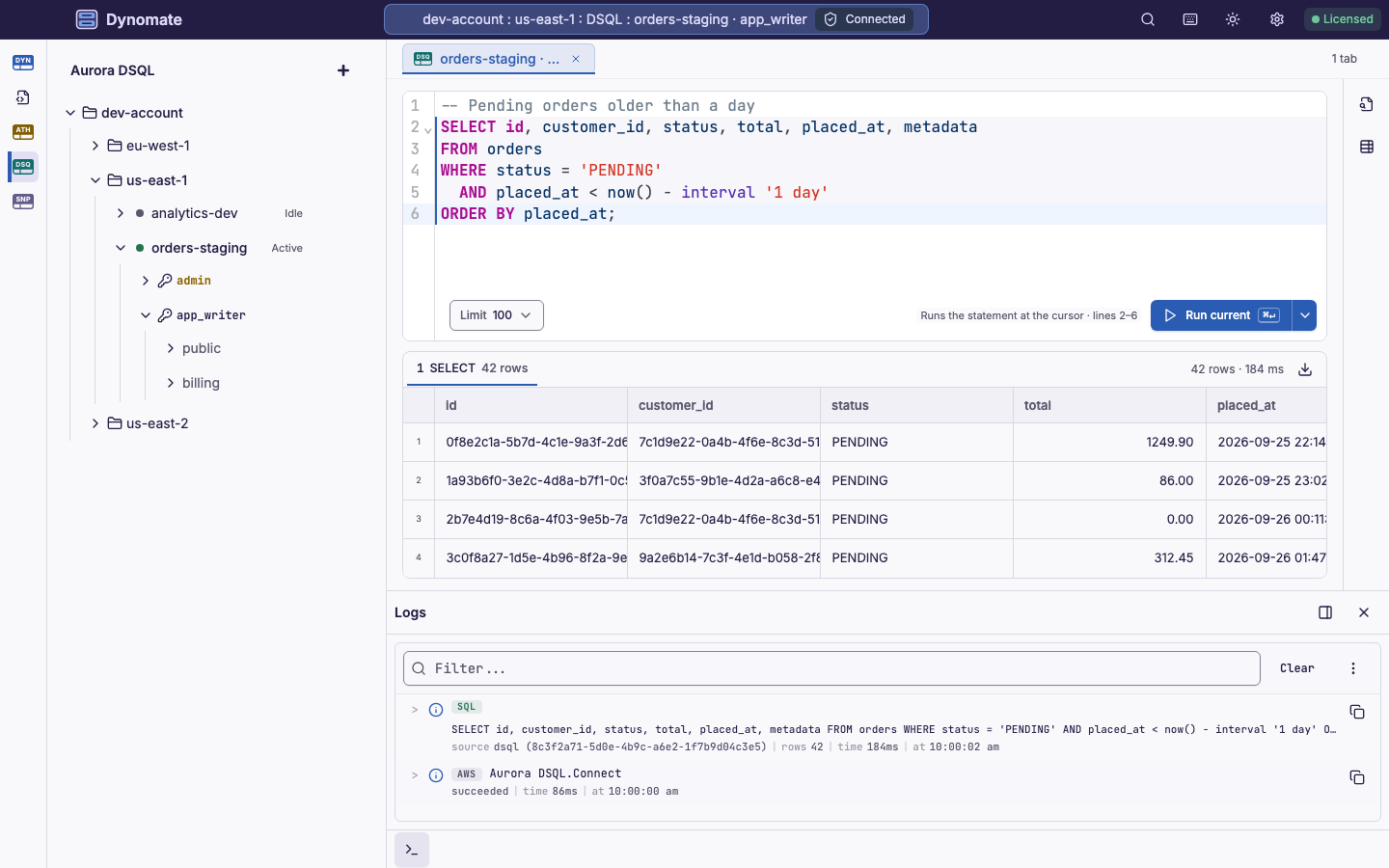
- In the sidebar, select New console in the connection menu.
- Write SQL in the editor. Put the cursor in a statement, or select text.
- To change the row limit, select Limit.
- Select Run current, or press Cmd + Enter on macOS or Ctrl + Enter on Windows and Linux.
Run current runs the selected text, or the statement at the cursor. To run the full script, select Run all in the More run options menu. See SQL editor shortcuts.
- Dynomate splits the script into statements with the same rules as
psql, and runs them one at a time, in order. - If a statement fails, the run continues with the next statement.
- Outside an explicit transaction, each statement commits on its own.
- Dynomate never runs a statement again automatically, also after a conflict.
- The console has no bind parameters. To use
$1, run the SQL in a request with typed parameters.
The editor completes schema, table and column names from the catalog of the connection. It does not check the SQL.
Set the row limit
Each console tab has a row limit. The default is 100 rows. Dynomate adds the limit as LIMIT n at the end of each simple SELECT that it sends.
- Select Limit at the bottom left of the editor.
- Select a value, for example 1,000 or No limit.
For another value, type a whole number in Custom, 1 to 500,000. Then press Enter.
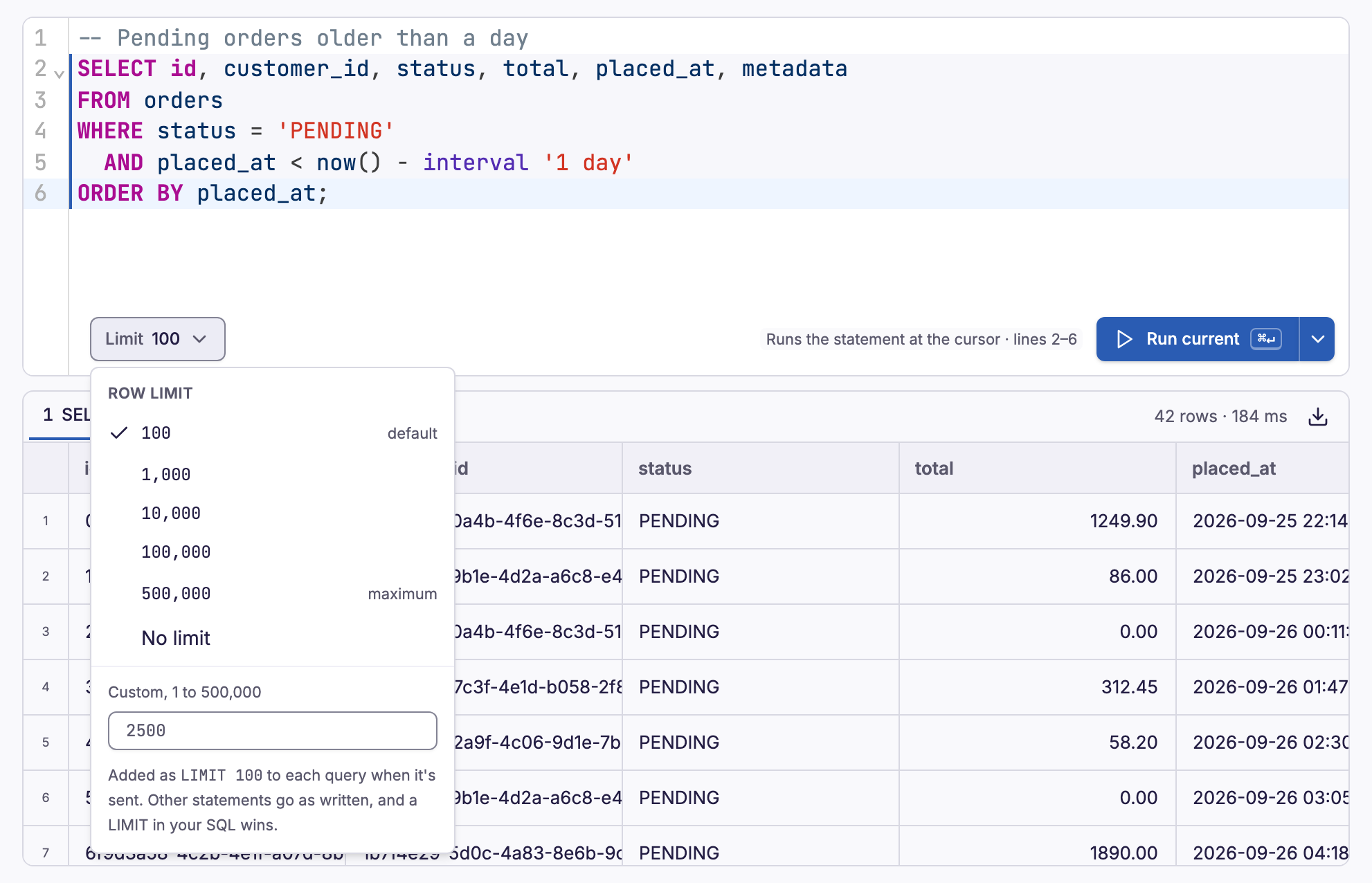
Dynomate adds the limit only to a SELECT with a top-level FROM. Other statements go as written, for example WITH queries, UNION and EXPLAIN.
To see the SQL that Dynomate sent, expand the run entry in Logs. Requests and the CLI never add a LIMIT.
Read results
The results panel has a tab for each statement that returned rows or failed. Messages is the first tab when the run has an error or a server warning.
A failed statement shows the server message and the SQLSTATE. For some errors, it also shows guidance from Dynomate. After a conflict, you can select Run again. See optimistic concurrency conflicts.
- Cells show the text that the server sends, and numbers stay exact. JSON Inspector shows the focused row.
- A result of more than 1,000 rows loads in parts of 200 rows when you scroll. You can copy cells only from a result of up to 1,000 rows.
- To sort a complete result, open the menu of a column header. Dynomate sorts the stored result on this computer, and does not run the SQL again.
- A new run deletes the results of the earlier run. Results also do not stay after you close the tab. To keep a result, export it first.
Export a result
- Wait until the result is complete.
- Select Export result at the right end of the result tabs.
- Select JSON (.json) or CSV (.csv).
Dynomate exports the full result, in the sorted order, to your Downloads folder. Numbers stay exact. In CSV, NULL is an empty field.
Asynchronous index builds
After CREATE INDEX ASYNC, Dynomate follows the job above its result until the job completes or fails. If the job fails, drop the index with DROP INDEX before you create it again. See Index states.
Sessions and transactions
Each console tab has one session. You can run BEGIN in one run and COMMIT in a later run, as in psql. While a transaction is open, the session bar shows its age, COMMIT and ROLLBACK.
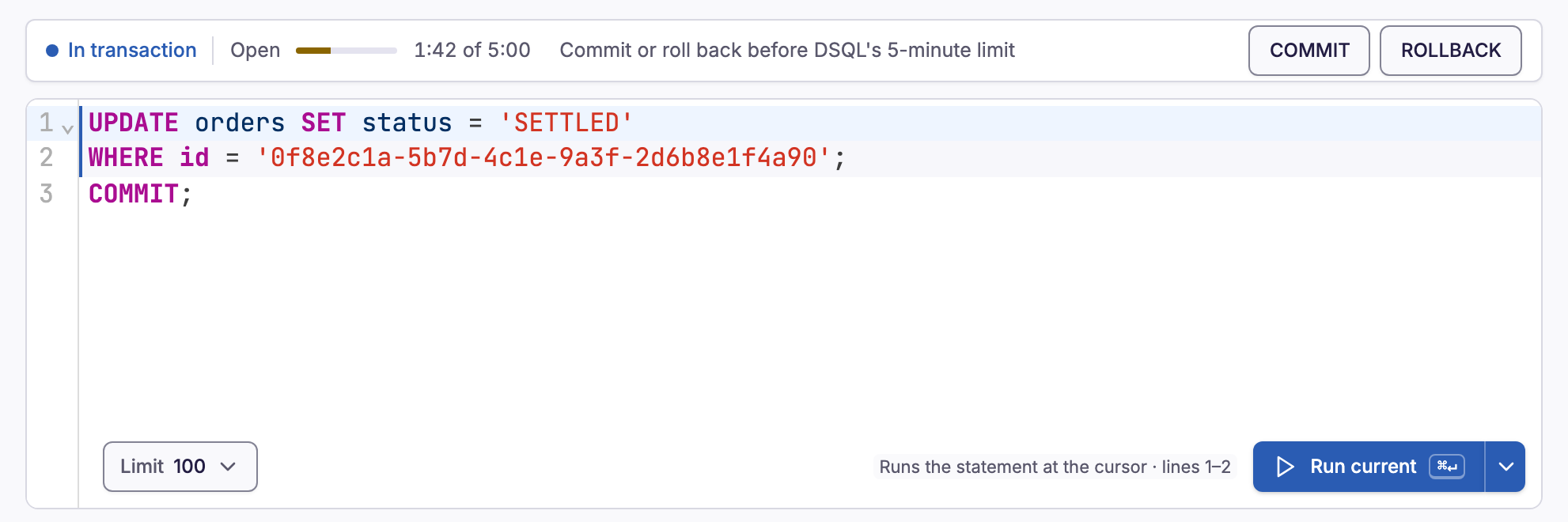
Aurora DSQL limits each transaction, for example to 5 minutes, 3,000 changed rows and one DDL statement. See Aurora DSQL limits.
If Dynomate must open a new session, for example after Cancel, a notice tells you what the old session lost. This can be an open transaction, prepared statements or SET values. The notice also tells you if the outcome of a write is unknown.
Cancel a run
Aurora DSQL cannot cancel a running statement. To cancel, Dynomate closes the database connection and opens a new session.
- In the session bar, select Cancel.
- Select Close session.
- Dynomate restores
SETvalues, for examplesearch_path, on the new session. The new session does not have your prepared statements. - The server can continue the work for up to 5 minutes. This uses DPUs, but it holds no locks.
- A cancel during a
COMMITor an autocommit write gives an unknown outcome. See Unknown commit outcomes.
Review activity in Logs
To see the activity of a run, open Logs from the toolstrip. Each run writes one SQL entry. The entry has each statement as Dynomate sent it, with any LIMIT that Dynomate added, and the outcome of each statement.
Each connection attempt shows as AWS activity, with the route, the TLS level and the role. Dynomate never writes the IAM authentication token to Logs.
Required permissions
To connect, the profile needs dsql:DbConnect, or dsql:DbConnectAdmin for admin. The database role also needs privileges for the SQL that you run. See connection permissions.