
View and filter Aurora DSQL tables
A table tab shows the rows of one Amazon Aurora DSQL table or view. Filter mode builds the query from filter rows. SQL mode is a console for the same table.
Open a table
- In the Aurora DSQL section of the sidebar, expand the connection.
- Expand the schema.
- Select a table or view.
You can also open a table from Global Search. The tab label is the table name. For a table in another schema, the label also shows the schema after the table name, for example invoices · billing.
A connection has one tab for each table. The tab opens in Filter mode. Filter mode and SQL mode use the same session.
Filter rows
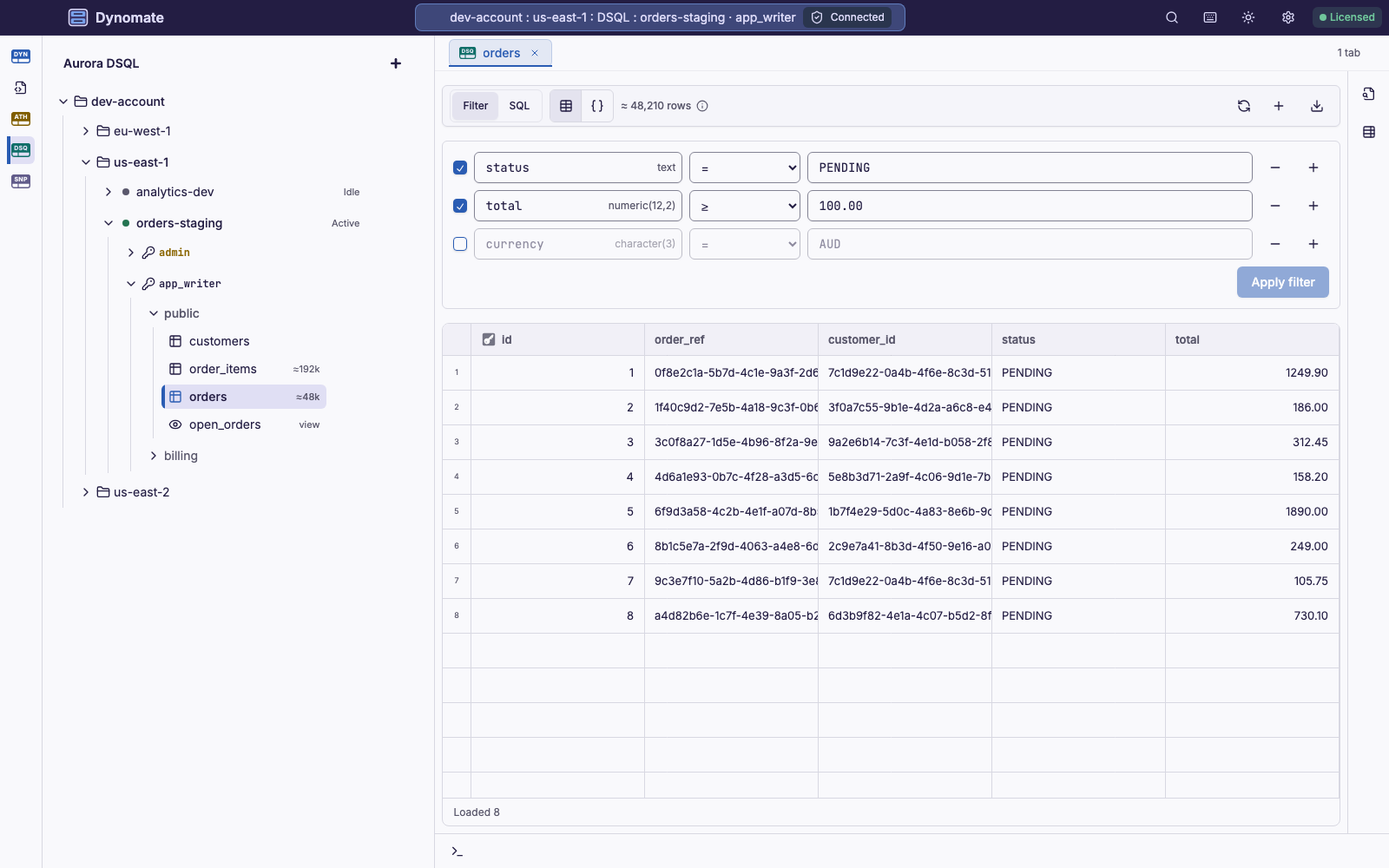
- In a filter row, select a column in Column.
- Select an operator.
- Enter a value.
- Select Apply filter, or press Enter in a value field.
- Dynomate joins the checked rows with
AND. An unchecked row has no effect. - To see all rows, clear all checkboxes. Then select Apply filter.
- Dynomate sends the values as query parameters, not in the SQL text.
- Dynomate saves the filter with the tab.
The operators depend on the column type, for example Like and Matches regex for text, and Has key for jsonb. Contains text, Starts with and Ends with treat % and _ as plain characters.
Page and sort rows
Dynomate loads 200 rows at a time, and loads the next page when you scroll. If the table has a primary key or a usable unique index, Dynomate uses it to find the next page. For a view, or a table without such a key, it uses OFFSET.
To sort the rows:
- Open the menu of a column header.
- Select Sort Ascending or Sort Descending.
The sort runs on the server, on one column. To remove the sort, delete the ORDER BY clause in SQL mode. Then switch back to Filter mode.
The toolbar shows an estimate of the rows from the table statistics. For an exact number, run SELECT count(*) in a console. Refresh loads the first page again.
Use SQL mode
To open SQL mode, select SQL in the toolbar. SQL mode is a console for the table, with its own row limit. Its results are read-only.
When you switch to SQL mode, Dynomate builds the SQL from the checked rows and the sort. It never replaces SQL that you wrote. For example, two filter rows and a sort give this SQL:
SELECT *FROM "public"."orders"WHERE ("status" = 'PENDING' AND "total" >= 100.00)ORDER BY "placed_at" DESC
When you switch back to Filter mode, Dynomate converts the SQL to filter rows if it can. It converts a SELECT from one table with AND conditions and a sort on one column. If it cannot convert the SQL, the filter rows stay as they were.
Write the table name with its schema, for example FROM public.orders. Dynomate cannot convert FROM orders back to Filter mode.
A transaction that you begin in SQL mode also applies to Filter mode. Page loads see the uncommitted changes, and staged changes apply in the open transaction.
Inspect and download rows
To see all loaded rows as JSON, select the JSON view icon in the toolbar. JSON Inspector shows the focused row, read-only.
To download the loaded rows, select Download & export in the toolbar. Then select a format under Download current page. The file has all pages that loaded, with the staged updates.
There is no full-table export. To save all rows, run a query with No limit in a console. Then export the result. To copy or export selected rows, right-click them.
Required permissions
The database role needs SELECT on the table or view. To connect, the profile needs dsql:DbConnect, or dsql:DbConnectAdmin for admin. Page loads and filters make no AWS API calls.