
Connect to an Aurora DSQL cluster
An Amazon Aurora DSQL connection is an AWS profile, a cluster and a database role. Dynomate signs a new IAM authentication token for each database connection and never saves a password or token.
How connections work
- Each connection has one AWS profile, one cluster ARN and one database role. Two connections cannot have the same three values.
- One cluster can have many connections, for example one for each role.
- The AWS Region comes from the cluster ARN. The default Region of the profile has no effect.
- Dynomate always uses port 5432 and the database
postgres. - The network route and TLS settings belong to the cluster, not to the connection.
Create a connection
Select Connect on a cluster in the discovery results, or select + in the Aurora DSQL sidebar section.
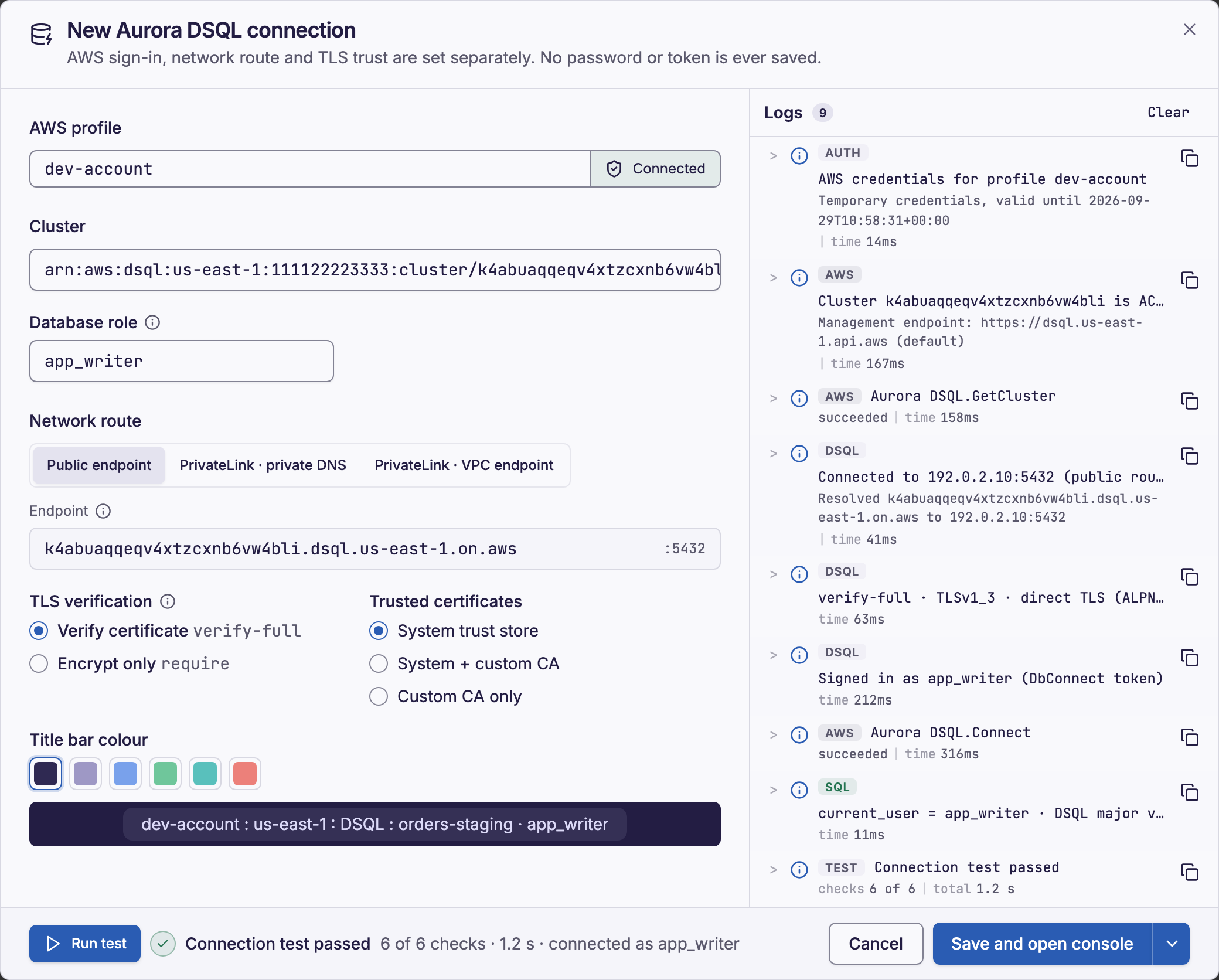
- In AWS profile, select a profile.
- In Cluster, select a cluster or paste its ARN.
- In Database role, enter
adminor the name of a custom role. - Optional: select a network route and the TLS settings.
- Select Run test.
- Select Save and open console.
- If the profile is not signed in, select the sign-in chip in AWS profile.
- To save without a console, open the menu of Save and open console. Then select Save.
- Under Title bar colour, you can select a color for the title bar of the tabs of the connection.
Choose a database role
The database role sets the IAM action of the token. For admin, Dynomate signs a dsql:DbConnectAdmin token. For all other roles, it signs a dsql:DbConnect token.
Dynomate sends the role exactly as you type it. PostgreSQL changes an unquoted name in CREATE ROLE to lowercase, so CREATE ROLE App_Reader makes app_reader.
Create a custom role
A custom role needs an IAM policy that allows dsql:DbConnect, a database role with LOGIN, and an IAM mapping. Dynomate does not create roles or mappings.
- Open a console on an
adminconnection to the cluster. - Create the role with
LOGIN. - Map the role to the ARN of the IAM role with
AWS IAM GRANT. - Grant the table privileges that the role needs with
GRANT. - Wait about 15 seconds for the mapping to apply.
- In the connection dialog for the new role, select Run test.
This SQL creates the role app_reader and maps it to an IAM role:
CREATE ROLE app_reader WITH LOGIN;AWS IAM GRANT app_reader TO 'arn:aws:iam::111122223333:role/AppReader';
Map the ARN of the IAM role with its path. The path of an AWS IAM Identity Center role starts with /aws-reserved/sso.amazonaws.com/. An assumed-role session ARN does not work.
Test the connection
Run test checks the values in the dialog, but it does not save the connection. It runs these checks in order and stops at the first check that fails:
- AWS credentials: Dynomate loads the credentials of the profile.
- Cluster: Dynomate calls
GetCluster. This check never fails the test. - Network route: Dynomate resolves the DNS name and opens a TCP connection to port 5432.
- TLS: Dynomate makes the TLS handshake. With Verify certificate, it also checks the certificate.
- Authentication: Dynomate signs the token and signs in as the database role.
- Identity check: Dynomate runs
SELECT current_user, sys.dsql_major_version().
The Logs panel of the dialog lists each check and AWS call. If a check fails, the panel shows guidance. For an Authentication failure, see access denied errors.
Edit and delete connections
To edit a connection, select Connection settings in its menu in the sidebar. A change to the profile, cluster or role closes the sessions of the connection. Dynomate also deletes its stored catalog and discards its staged changes.
A change to the network route or TLS settings closes the sessions of every connection to the cluster, and deletes their stored catalogs. A change to the color closes nothing. Open tabs connect again at their next run.
To delete a connection, select Delete connection in its menu. Its open tabs no longer work, but the cluster stays in the sidebar.
Tokens and sessions
Dynomate signs the IAM authentication token on this computer, with the credentials of the profile. It never writes the token to disk or to Logs. Aurora DSQL checks the token only when a database connection starts.
- A tab connects at its first run or page load. Then it keeps its database connection while it is open.
- Aurora DSQL closes a database connection after 60 minutes. Dynomate renews an idle session before this limit, if no transaction is open.
- Expired AWS credentials stop only new database connections. After you sign in again, run the statement again, or select Refresh in a table tab.
- A connection in use also opens up to 2 database connections for the catalog. All of them count against the connection limits of the cluster.
Required permissions
dsql:DbConnectAdminto connect asadmin, ordsql:DbConnectto connect as any other role.dsql:GetClusteris optional. It gives the status of the cluster and the Cluster check.sts:GetCallerIdentityneeds no permission. The test calls it to name your IAM identity in the guidance.
This example policy allows a connection as a custom role:
{ "Version": "2012-10-17", "Statement": [ { "Effect": "Allow", "Action": ["dsql:DbConnect", "dsql:GetCluster"], "Resource": "arn:aws:dsql:us-east-1:111122223333:cluster/exampleclusterid0123456789" } ]}A resource-based policy on the cluster can still deny the connection. For the permissions of each task, see Aurora DSQL permissions.