
SSO Authentication
Before you use SSO
AWS Single Sign-On (SSO) is the previous name for AWS IAM Identity Center. This page uses the term SSO because the AWS configuration keys use it.
You need:
- An IAM Identity Center start URL.
- An AWS account and role that your organization assigned to you.
- An SSO profile in
~/.aws/config. - Professional or Enterprise access in Dynomate, or an active 14-day trial.
Your Dynomate sign-in and AWS SSO sign-in are separate. The Dynomate account controls the app license. AWS SSO controls access to AWS resources.
Configure an SSO profile
Use the AWS CLI to create the profile, or edit the AWS config file. The AWS CLI reduces configuration errors:
aws configure ssoA current SSO configuration can use a named session:
[sso-session company]
sso_start_url = https://example.awsapps.com/start
sso_region = ap-southeast-2
sso_registration_scopes = sso:account:access

[profile production-read]
sso_session = company
sso_account_id = 123456789012
sso_role_name = ReadOnly
region = ap-southeast-2
Dynomate also supports the earlier profile format:
[profile production-read]
sso_start_url = https://example.awsapps.com/start
sso_region = ap-southeast-2
sso_account_id = 123456789012
sso_role_name = ReadOnly
region = ap-southeast-2
Restart Dynomate after you add or rename the profile.
Sign in from Dynomate
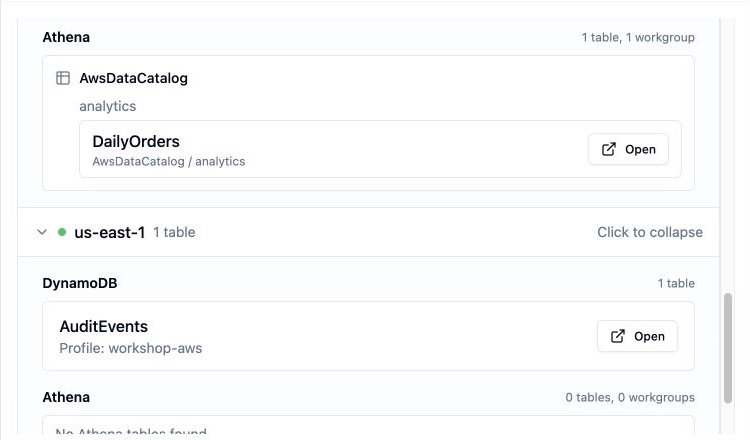
- Select Tables in the left navigation.
- Select Discover tables.
- Select the SSO profile.
- Select Login if the session is not valid.
- Complete the AWS sign-in in the browser that opens.
- Return to Dynomate.
- Wait for Dynomate to confirm the AWS identity.
- Select one or more Regions.
- Select Load Tables.
Dynomate checks for completion every five seconds for up to two minutes. If the sign-in takes longer, select Login and try again.
Use an existing session
Dynomate reads and writes SSO sessions in the standard AWS cache at
~/.aws/sso/cache. If a valid session is present, Dynomate uses
it without opening the browser.
You can also start a session with the AWS CLI:
aws sso login --profile production-readReturn to Dynomate and select Refresh for the profile. Dynomate then checks the cached session and the AWS identity.
Session expiry
Your AWS administrator controls the SSO session duration. When the session expires, Dynomate marks the profile as invalid and disables table loading.
- Select Login.
- Complete the AWS sign-in in your browser.
- Return to Dynomate.
- Wait for the identity check to succeed.
Authentication state belongs to the AWS profile. Open table tabs keep the profile and Region that were used during discovery.
Troubleshooting
The profile is not detected as SSO
- Check that the profile has
sso_start_urlorsso_session. - Check the referenced
[sso-session name]section. - Restart Dynomate after you change the config file.
The browser does not open
- Check that your system has a default browser.
- Run
aws sso login --profile profile-namein a terminal. - Return to Dynomate and select Refresh.
The sign-in times out
- Complete the browser step within two minutes.
- Check that
sso_start_urlandsso_regionare correct. - Select Login to start a new device authorization.
Access is denied after sign-in
- Check the
sso_account_idandsso_role_name. - Check that the assigned role can list the required DynamoDB tables.
- Check that you selected the correct AWS Region.