
Table Workflow
A table tab keeps its AWS profile, Region, table, result mode, and selection separate from other tabs. Confirm that context before you read or change data.
Discover tables
- Open table discovery from the main sidebar.
- Select an AWS profile.
- Select one or more Regions.
- Select Load tables.
- Expand a Region and select a DynamoDB table.
A local endpoint profile does not require an STS identity check. For AWS profiles, resolve any authentication error before you load tables.
Open and switch tables
Each table opens in a tab. Use the main sidebar or Global Search to open another table. Global Search only includes resources that Dynomate has already discovered. The tab keeps the table ARN and profile, which reduces accidental context changes when you switch tabs.
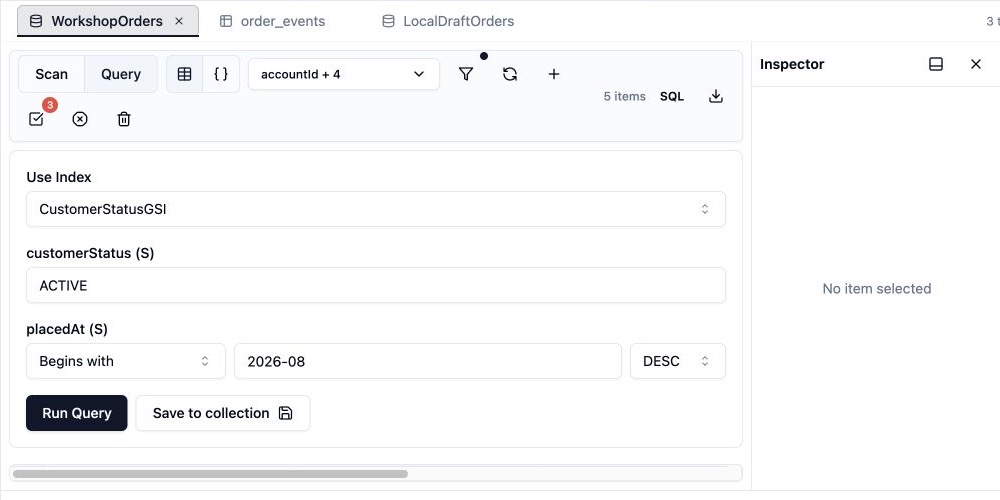
Run a Scan or Query
- Scan reads items without a partition key condition. Add filters to reduce the returned items, but remember that DynamoDB applies scan filters after reading data.
- Query requires a partition key value. Select the base table or an index, then add a sort key condition when the selected schema supports one.
- Scroll near the end of the grid to load the next result page when more rows are available.
If a request fails, open Logs to read the AWS error, profile, Region, resource, and request ID. A failed Query with saved parameters can be run again from the matching table tab.
Select and inspect rows
Select a row to show its JSON in JSON Inspector. Use Shift+click or Shift+arrow keys to extend a selection. Use Cmd/Ctrl+A while the grid has focus to select all loaded rows. JSON Inspector data is scoped to the active tab.
Edit and review updates
Inline grid edits and JSON Inspector edits are staged. Open Review Changes, review each Put, Update, or Delete operation, then apply the changes. The row context menu's Edit Item dialog is different: it writes immediately and does not enter Review Changes. See Items and Changes.
Move data or create a snapshot
- Import editor JSON, a local JSON or CSV file, an S3 object, or another DynamoDB table. Review the preflight result before you start the job.
- Download the current page or selected rows as JSON or CSV.
- Export the full table as compressed JSON Lines or CSV.
- Select SQL to create a local snapshot with a full-table scan, then query the snapshot after its local artifact is ready.